Geospatial
The DiCRA Geospatial Portal is an interactive map-based interface to visualize, analyze, and download climate and related geospatial data. Users can access 35+ layers across multiple categories at sub-district scale, switch between raster/vector representations, analyze historical trends, and compare layers across dates.
Navigate to the Geospatial Portal to access the dashboard containing the map visualizer, location/navigation controls, layer selection panel, and layer info panel — along with options on the side panel to compare layers, access the documentation portal, and the layer map visualiser.
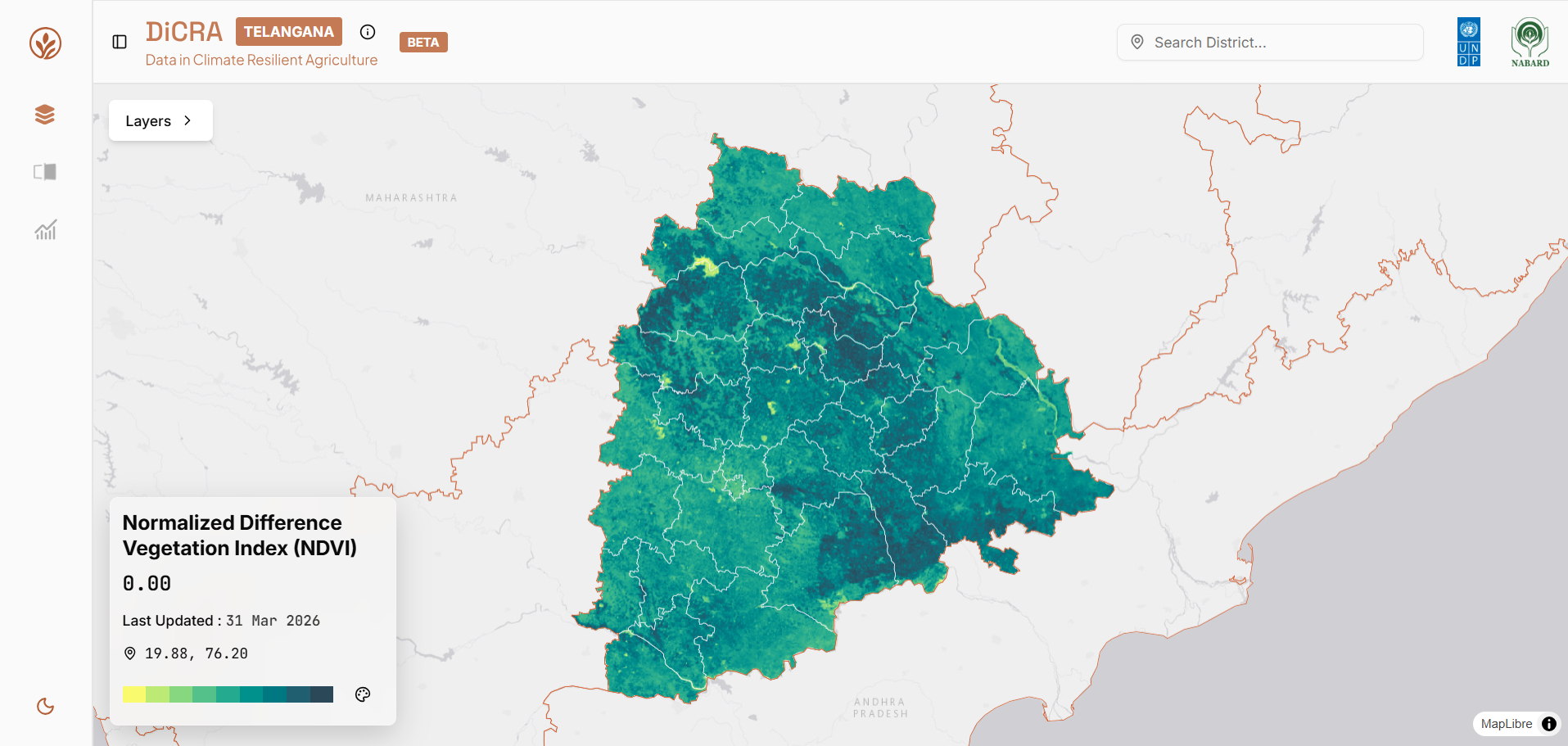
- Zoom using scroll or
+/-controls. - Pan by clicking and dragging.
- Search for regions, districts, or coordinates.
Layer Selection & Legends
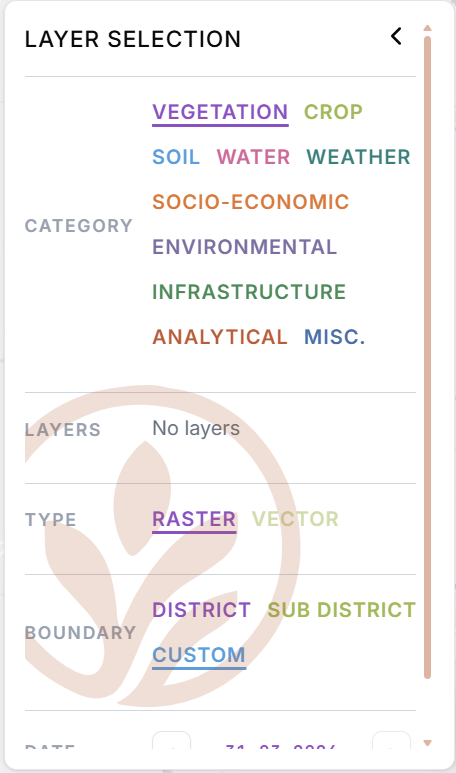
- Select a category from the 10 available options.
- View the data layers pertaining to that specific domain (e.g., Vegetation).
- Select a layer from the generated list (e.g., NDVI, EVI).
- Select the type of layer data you want to use.
- Choose Raster or Vector to update the layer info panel.
- Observe the different visualizations and information based on your data type selection.
Note: selecting Vector data will display a ranking index of the raster data within the state in relation to all districts and sub-districts.
Boundary Selection

- Select district or sub-district boundaries. The info panel and map visualizations will adjust the shape boundaries accordingly.
- If you want the data from a particular area, click the custom option and draw a custom boundary within the state/district you have selected.
Layer Info Panel (Raster)
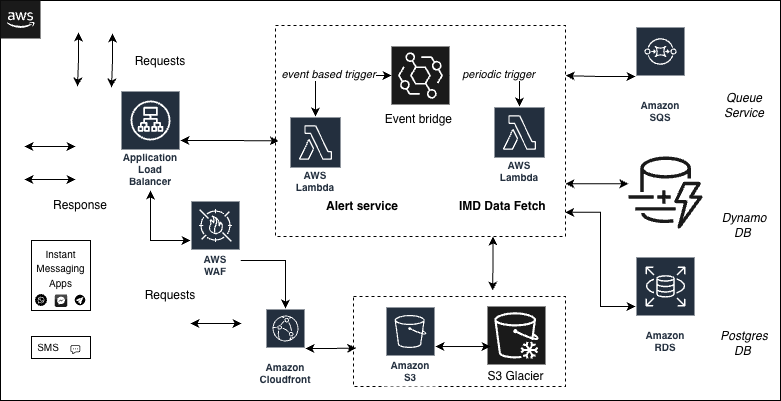
Click a map location to view the info panel on the right side, which contains:
- location and coordinates
- latest update indicators
- layer value ranking index and percentile (vector data only)
- trend charts (1-, 3-, 5-, and 10-year views)
- source, citation, and standards
Layer Info Panel (Vector)
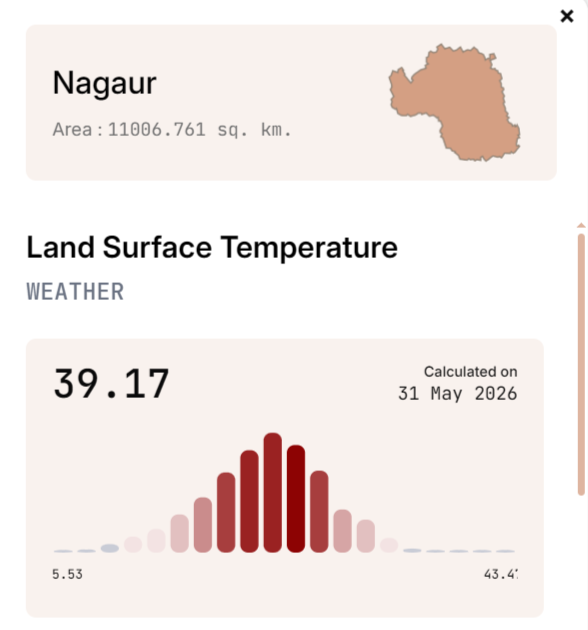
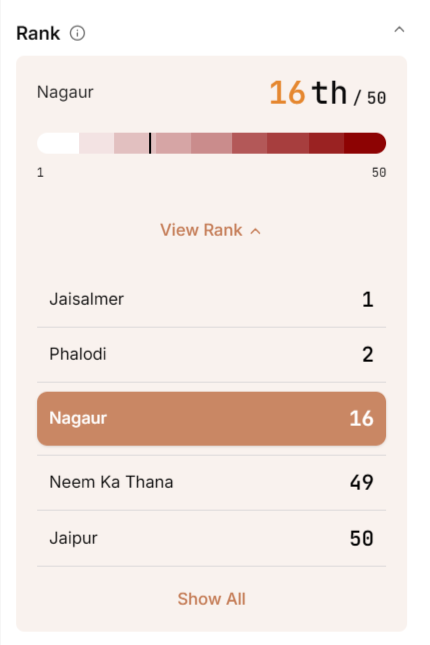
If you click the vector option in the data type in the layer selection panel, you can then view additional data:
- view the shapefile of the selected area
- current value along with a monthly average graph
- trends on a 1-, 3-, 5-, and 10-year scale
- view the ranking of the vector data within the district
You can then click Show all within the ranking to see the entire ranking index for the complete district/sub-district.
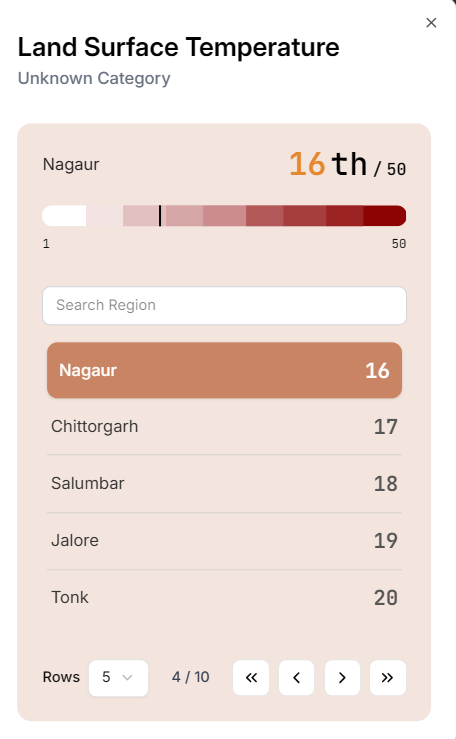
- View a paginated modal that provides the complete index by ranking all the districts/sub-districts.
- Search to find the ranking of a particular district or sub-district as well.
Comparative Analysis
The Geospatial portal provides side-by-side comparison of two layers (or one layer across two dates) with a slider view. This can be found in one of the options in the expandable side panel of the portal.
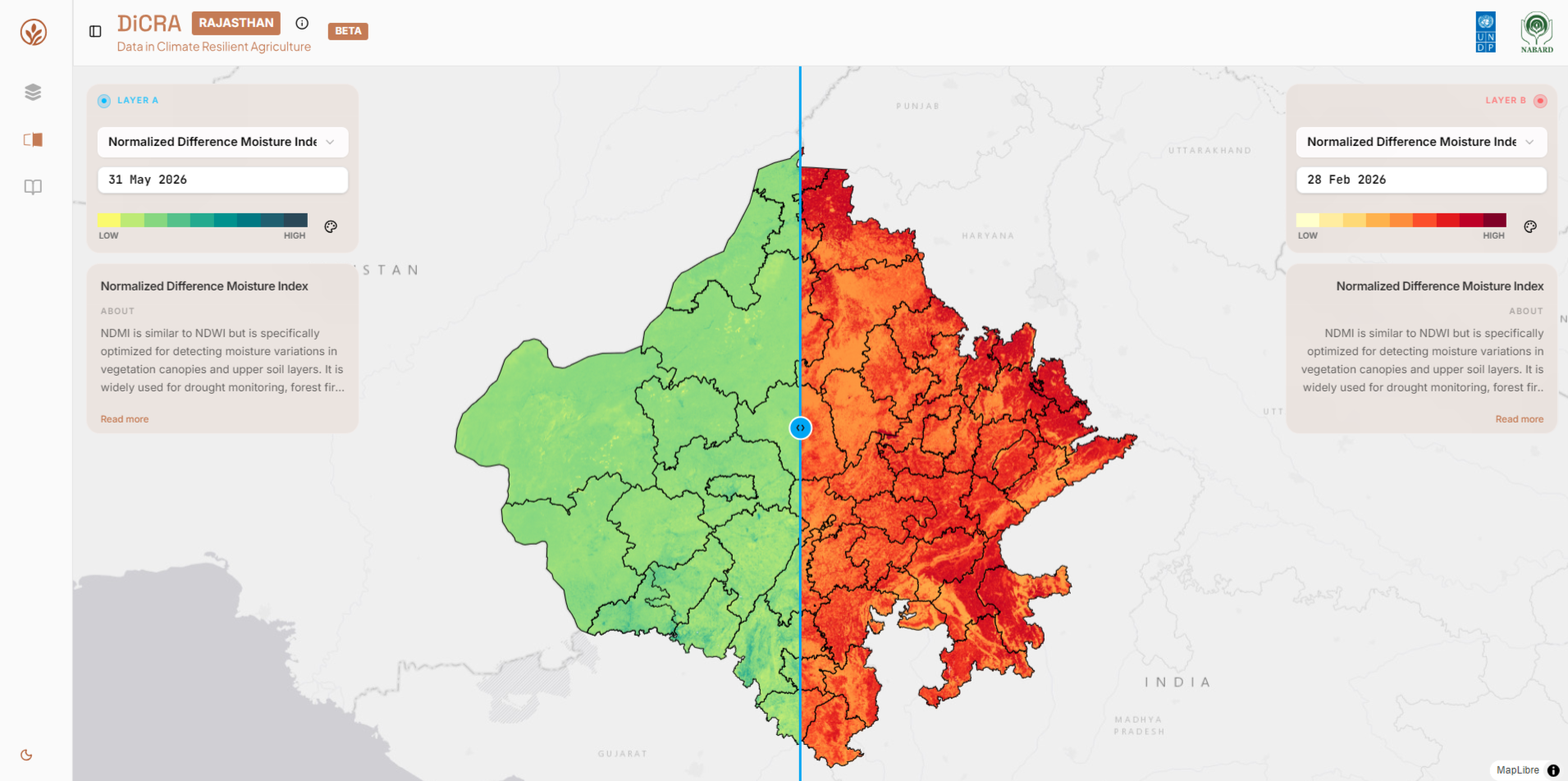
- Select the left and right layers that you want to compare. You can select the same layer or different ones.
- Select comparison dates.
- Then, using the slider, you can identify the change in the intensity of the values and use that for further applications.